


Control the page layout#
Warning
Many of the features on this page are experimental and may change at any time.
There are a few ways to control the layout of a page with Jupyter Book. Many of these ideas take inspiration from the Edward Tufte layout CSS guide.
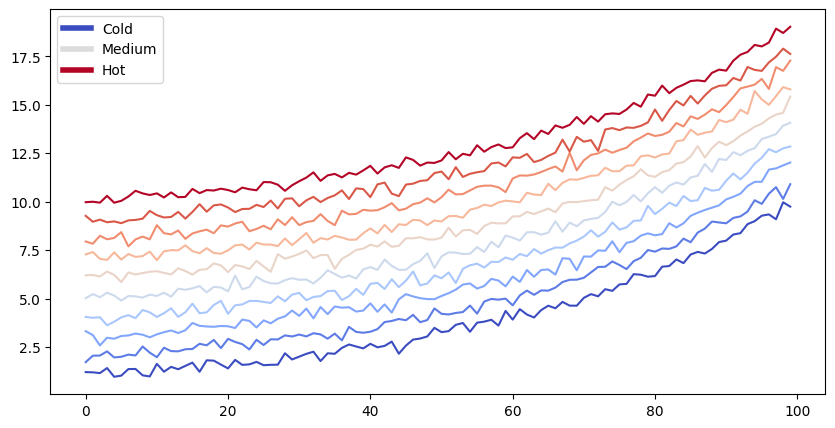
Let’s begin with a sample plot. You can click the toggle button to the right to see the code that generated it.
Sidebar content#
Adding sidebar elements allow you to provide contextual information that doesn’t break up the flow of your main content. It is one of the main patterns recommended in the Tufte style guide.
There are two kinds of sidebars supported by Jupyter Book. We’ll describe them below.
Note
Some sidebar content behaves differently depending on the screen size. If the screen is narrow enough, the sidebar content will exist in-line with your content. Make the screen wider and it’ll pop out to the right.
Margin content#
To add content to the margin with MyST Markdown, use this syntax:
```{margin} An optional title
My margin content
```
Controlling margin content with code cells uses a slightly different syntax, which we’ll cover below.
Margins with code cells#
You can make a code cell move to the right margin by adding margin to your
cell’s tags.
Here’s what the cell metadata for a margin cell looks like:
{
    "tags": [
        "margin",
    ]
}
See also
For a MyST text file these tags can be added to the code-cell
```{code-cell} <language>
:tags: [margin]
```
For example, we’ll re-display the figure above, and add a margin tag to the code cell.
make_fig(figsize=(10, 5))
This can be combined with other tags like remove-input to only display the figure.
The MyST cheat sheet provides a list of code-cell tags available
Full-width content#
Sometimes, you’d like to use all of the horizontal space available to you. This allows you to highlight particular ideas, visualizations, etc.
Full-width code cells#
You can specify that a code cell’s inputs and/or outputs should take up all of the horizontal space (including the margin to the right) using the following cell metadata tag:
{
    "tags": [
        "full-width",
    ]
}
See also
For tips on how to add cell metadata to your notebooks, see Add metadata to notebooks.
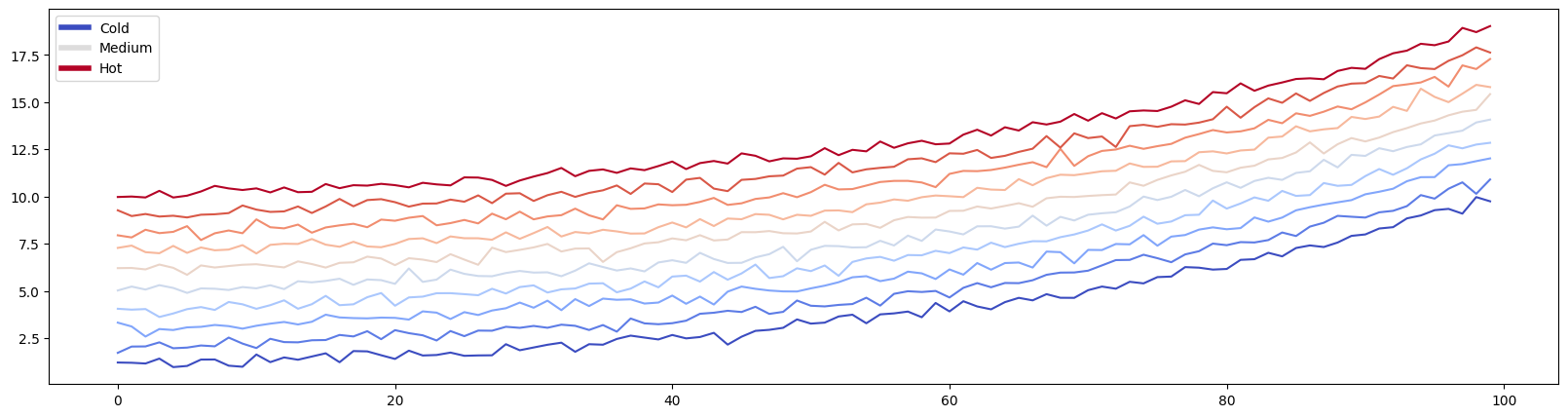
For example, let’s take a look at the figure in the margin above in a cell with full-width set. We’ll tell Matplotlib
to make it a bit wider so we can take advantage of the extra space!
Full-width markdown content#
If you’d like to make your markdown content full-width, you cannot do so via cell tags. Instead, you have a few options:
Use the
{div}directive with afull-widthclass.. Any content with afull-widthclass will take up the full width of the screen. For example, the following code:````{div} full-width ```{note} Here's a note that will take the full width ``` ````results in:
Note
Here’s a note that will take the full width
For more information on
<div>blocks, see Custom <div> blocks.Add a
full-widthclass to directives that support classes. Many directives allow you to directly add a CSS class to them.For example, the
{note}directive above allows for this:```{note} :class: full-width Here's a note that will take the full width ```results in:
Note
Here’s a note that will take the full width
Check the documentation of the directive to see if it supports adding your own classes, or use the
{div}directive as described above.
Mixing margins and full-width content
Be careful when mixing margins and full-width content. Sometimes these can conflict with one another in visual space. You should use them relatively sparingly in order for them to have their full effect of highlighting information.